إدارة ملفات تعريف الارتباط المستخدمة للإعلان، مثل تخصيص الإعلانات وتجديد النشاط التسويقي وتحليل أداء الإعلان.
4.3.2.12. Import/export contacts in WebMail classic
Import/export of contacts in WebMail classic is performed in "Contacts" section:
Import
You can import contacts saved in one of the formats:
- vCard.
- CSV.
When importing contacts from CSV file, note that data must be separated by commas and first line must contain correct column header names. WebMail successfully imports CSV files created by email clients like Thunderbird or Outlook. If file does not contain correct headers, data is not imported.
- Click the "Import contacts" button:

- Fill in the form and click "Import":
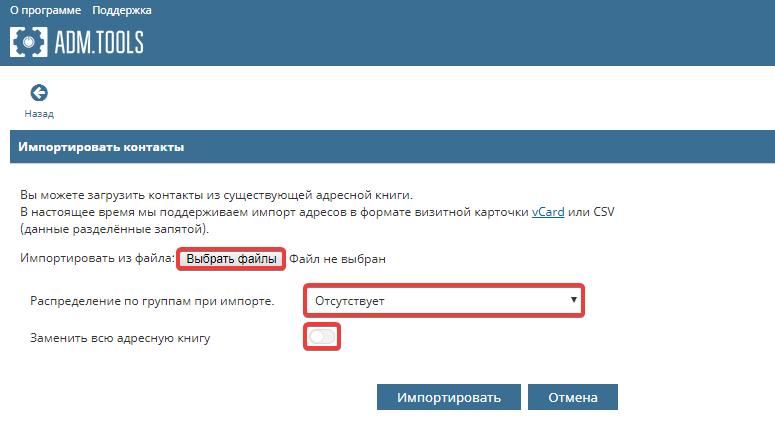
- "Import from file" — select file with contacts.
- "Group distribution during import" — select appropriate group processing method during import.
- "Replace entire address book" — leave option disabled if imported contacts must supplement existing ones, or enable it if imported contacts must replace existing ones.
Export
Contact export is performed in vCard format.
All contacts
To export all contacts, click triangle next to "Export" button and select "Export all", or click button itself: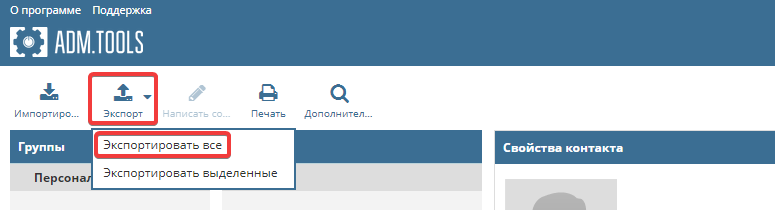
Individual contacts
- Select required contacts in contacts list.
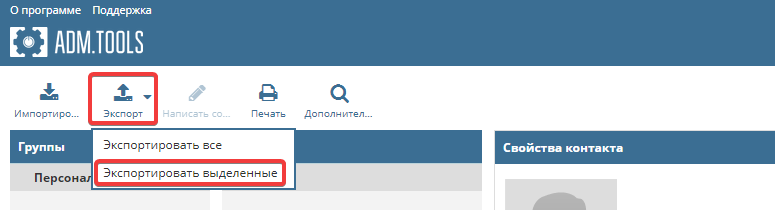
- Click the triangle next to "Export" button and select "Export selected":