إدارة ملفات تعريف الارتباط المستخدمة للإعلان، مثل تخصيص الإعلانات وتجديد النشاط التسويقي وتحليل أداء الإعلان.
Configure DNS over HTTPS (DoH)
Attention!
For informational purposes only, described actions are not required.You can check DoH operation using Cloudflare online service — 1.1.1.1.
DNS over HTTPS (DoH) is a technology for encrypting traffic to DNS servers that improves security, complicates resource blocking, and is also one of the tools for combating MITM. DoH is usually configured directly in the browser, but if an internet provider blocks communication over port 53 with third-party servers, using alternative DNS with DoH configuration in the browser will be insufficient, because many applications may also stop working correctly.
To configure DoH, set third-party DNS servers that support this technology, such as Google DNS or Cloudflare.
Configure DoH in browsers
Chrome
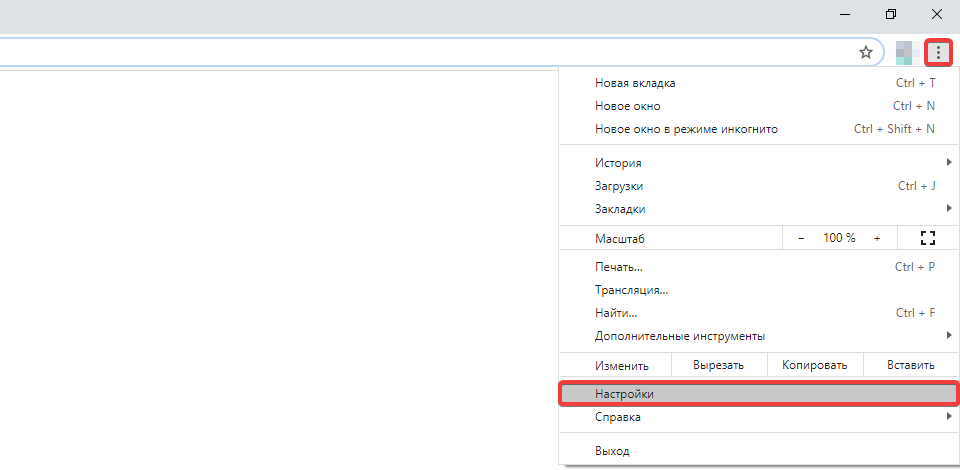
- Open the browser settings:
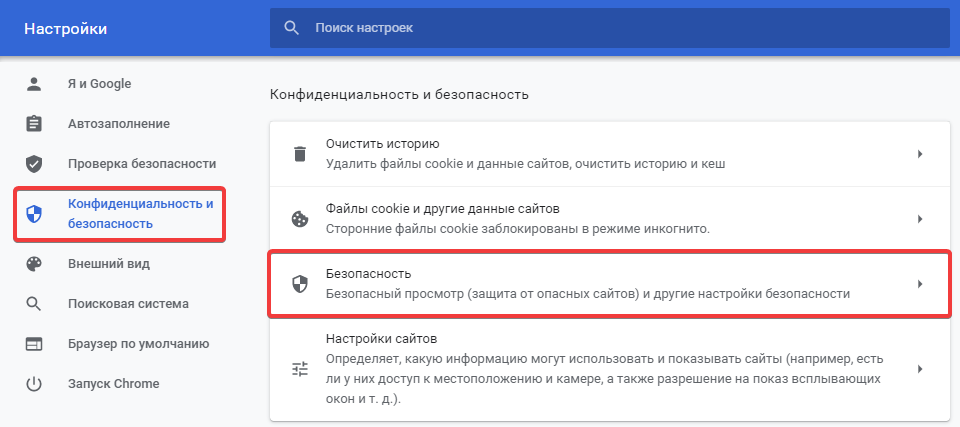
- In the "Privacy and security" section, go to "Security":
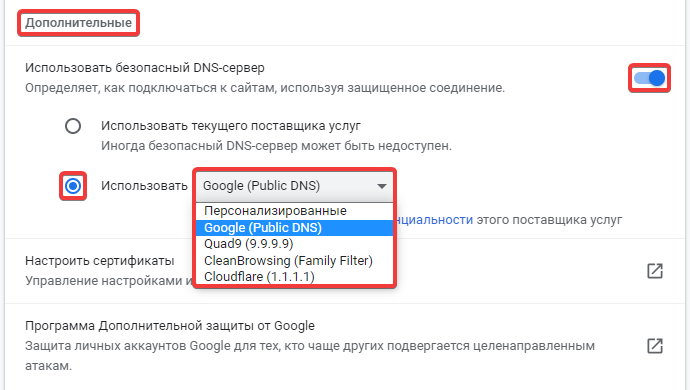
- In the "Advanced" section, check "Use secure DNS", select "Use", and choose the appropriate DNS service:
Firefox
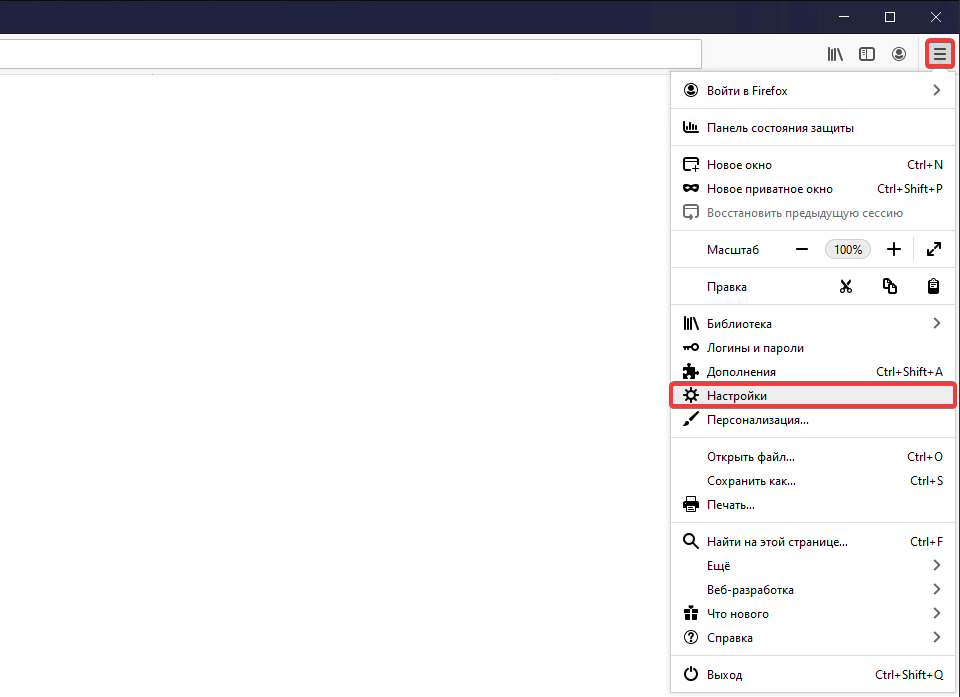
- Open the browser settings:
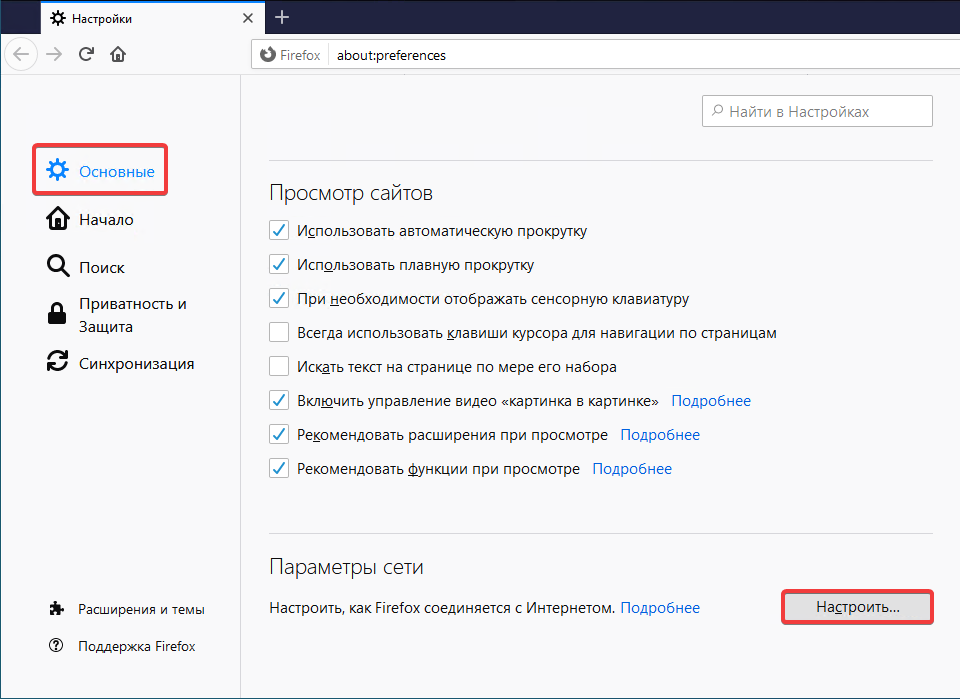
- In the "General" section, under "Network Settings", click "Settings":
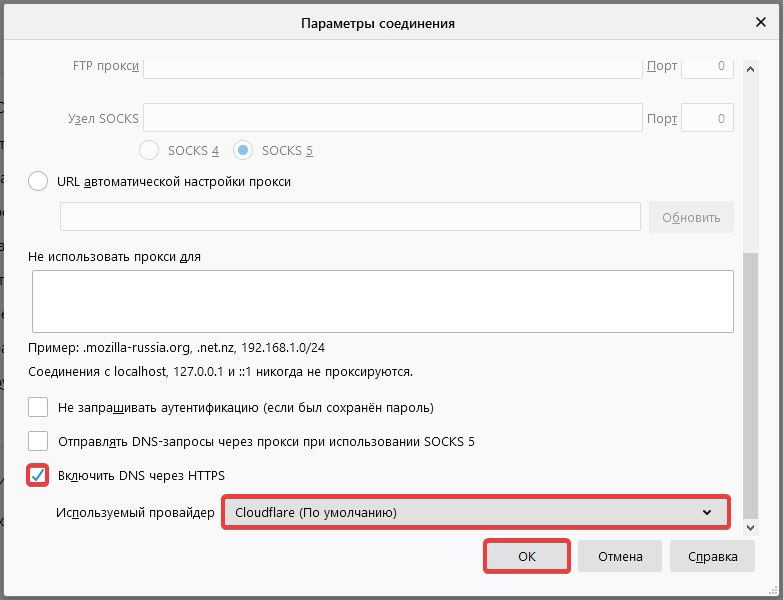
- Enable "Enable DNS over HTTPS", select the appropriate DNS service, and click "OK":
Configure DoH in Windows 10
- Press Win+R, type
regedit, and click "OK":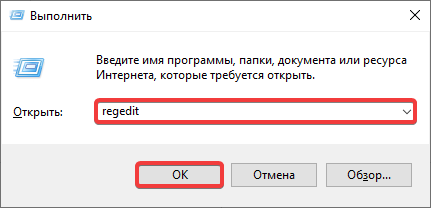
- In the registry editor, go to
Computer\HKEY_LOCAL_MACHINE\SYSTEM\CurrentControlSet\Services\Dnscache\Parameters(you can copy this path and paste it into the address bar instead of the wordComputer), right-click on an empty space in the right pane, select "New → DWORD (32-bit) Value", and enter the nameEnableAutoDoh: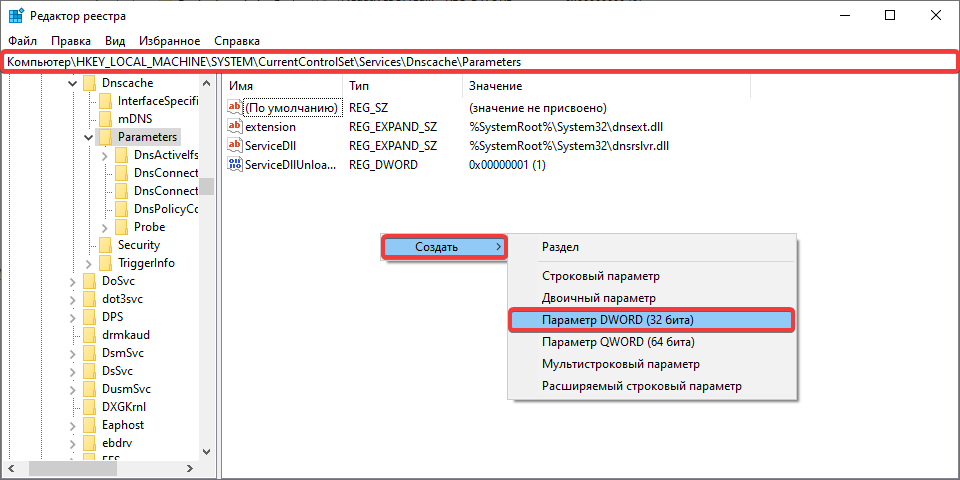
- Double-click the parameter you created, enter
2in the "Value" field, and click "OK":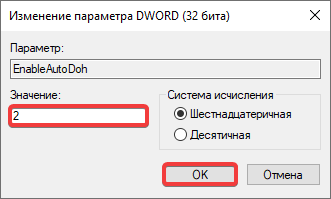
- Reboot the device to apply the changes to the DNS settings.