إدارة ملفات تعريف الارتباط المستخدمة للإعلان، مثل تخصيص الإعلانات وتجديد النشاط التسويقي وتحليل أداء الإعلان.
2.15.1.2.5. Problem with Let's Encrypt certificate working on older devices
Attention!
The situation that has arisen does not affect the security level of Let's Encrypt certificates.On September 30, 2021, the DST Root CA X3 root certificate expired. As a result, outdated devices that have not been updated for a long time and do not support the new ISRG Root X1 root certificate no longer trust the old certificate and display warnings or cannot establish a secure connection when visiting sites that use Let's Encrypt certificates.
What is considered outdated
Outdated devices and operating systems are those that are more than 5 years old, including:
- Windows XP up to SP3 (as well as SP3 and Windows 7, if root certificates were not automatically updated).
- macOS up to 10.12.1.
- iOS up to 10.
- Android up to 7.1.1.
- Ubuntu up to 16.04.
- Debian up to 8.
- Sony PlayStation 3 and 4 with firmware versions up to 5.00.
- Older models of smart TVs and smart home devices.
- Devices using OpenSSL version 1.0.x.
Ways to solve problem
There are several ways to solve this problem. The best solution would be to update the software to the latest versions, which already include support for the new root certificate. It is only worth taking measures to solve the problem if it is necessary, for example, if a significant portion of the service's audience uses outdated software and they are critical to the project. Otherwise, it is worth ignoring the current situation.
On client side
On the client side, you can:
- Manually install the ISRG Root X1 root certificate if it is not present in the storage of the system or software you are using.
- Remove the outdated DST Root CA X3 root certificate. The presence of an outdated root certificate may interfere with the normal operation of services that use Let's Encrypt certificates.
⚠️ This method may not work on all devices.
Windows 7
In Windows 7, the root certificate chain should have been updated if operating system updates are enabled. Otherwise, you must install the root certificate yourself by following these steps:
- Run the downloaded file and allow it to open by clicking "Open".
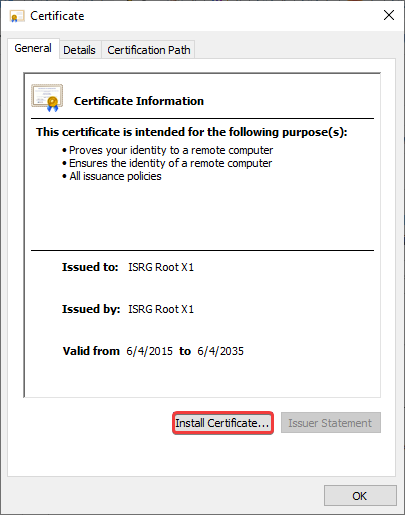
- In the window that appears, click "Install Certificate":
- Select for whom the certificate should be installed and click "Next".
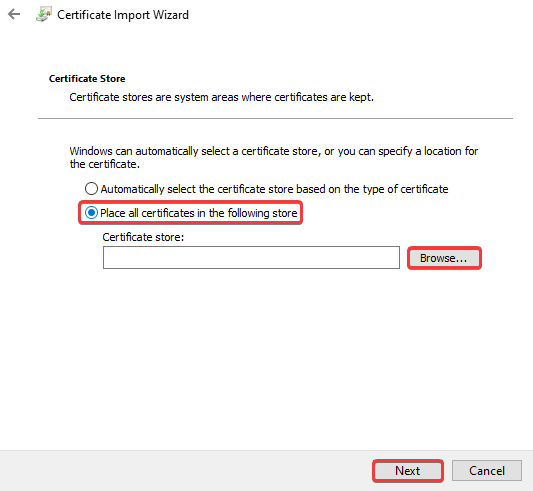
- Select "Place all certificates in the following store" and click "Browse":
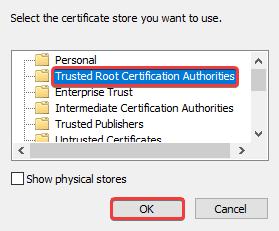
- Select the "Trusted Root Certification Authorities" store and click "OK":
- Click "Next", verify that the selected data is correct, and click "Finish".
- Check the operation of services that had access issues.
Debian/Ubuntu
- To check if the root certificate is in the trusted list, run the following command in the terminal:
awk -v cmd='openssl x509 -noout -subject' ' /BEGIN/{close(cmd)};{print | cmd}' < /etc/ssl/certs/ca-certificates.crt | grep "ISRG Root X1"If the command output includes
subject=C = US, O = Internet Security Research Group, CN = ISRG Root X1, no action is required. If not, proceed to the next step. - Run the following command in the terminal:
curl -k https://letsencrypt.org/certs/isrgrootx1.pem.txt | sudo tee /usr/share/ca-certificates/mozilla/ISRG_Root_X1.crt ; sudo echo "mozilla/ISRG_Root_X1.crt" >> /etc/ca-certificates.conf ; sudo update-ca-certificates - Check the operation of services that had access issues.
CentOS
- To check if the root certificate is in the trusted list, run the following command in the terminal:
awk -v cmd='openssl x509 -noout -subject' ' /BEGIN/{close(cmd)};{print | cmd}' < /etc/ssl/certs/ca-bundle.crt | grep "ISRG Root X1"If the command output includes
subject=C = US, O = Internet Security Research Group, CN = ISRG Root X1, no action is required. If not, proceed to the next step. - Run the following commands in the terminal:
trust dump --filter "pkcs11:id=%c4%a7%b1%a4%7b%2c%71%fa%db%e1%4b%90%75%ff%c4%15%60%85%89%10" | openssl x509 | sudo tee /etc/pki/ca-trust/source/blacklist/DST-Root-CA-X3.pem sudo update-ca-trust - Check the operation of services that had access issues.
OpenSSL 1.0.x
If the system uses an outdated version of OpenSSL, you must remove the outdated certificate from the trusted root certificates as follows:
- For Debian/Ubuntu, edit the file
/etc/ca-certificates.confby placing the symbol!at the beginning of the linemozilla/DST_Root_CA_X3.crt, and execute the command:update-ca-certificates
On server side
The problem can only be solved on the server side by using other certificates.
- To use a different certificate, you must purchase it from one of the certification centers or their partners. When choosing a new certificate, it is important to consider what features it offers and what areas it is suitable for. For example, below are some well-known certification centers:
- Install the certificate you received for the site.
- After installing the certificate, wait for the cached information to update, which usually takes about 15 minutes, and check the site operation on the problematic device.