إدارة ملفات تعريف الارتباط المستخدمة للإعلان، مثل تخصيص الإعلانات وتجديد النشاط التسويقي وتحليل أداء الإعلان.
1.5. Account login (authentication)
Notes:
- If you don't have an account yet, please register.
- If you can't remember your email, use access restore, if you can't remember your password, reset it (you need access to your mailbox).
- For security purposes, each account can be logged in no more than 15 times per hour.
flowchart LR
start@{ shape: stadium, label: "➡️ Log in" }
email1@{ shape: lean-r, label: "✉️ Email" }
password@{ shape: lean-r, label: "*️⃣ Password" }
link@{ shape: rect, label: "🔗 Link
from email" } subgraph "If connected" facebook@{ shape: rounded, label: "👤 Facebook" } discord@{ shape: rounded, label: "👤 Discord" } google@{ shape: rounded, label: "👤 Google" } end subgraph "If configured" webauthn1@{ shape: rounded, label: "🔑 WebAuthn" } end subgraph 2fa [Passing 2FA] email2@{ shape: rounded, label: "✉️ Email
(default)" } telegram@{ shape: rounded, label: "🤖 Telegram" } gauth@{ shape: rounded, label: "📱 GAuth" } webauthn2@{ shape: rounded, label: "🔑 WebAuthn" } phone@{ shape: rounded, label: "📞 Phone
(reserve method)" } end finish@{ shape: stadium, label: "✔️ Done" } start~~~2fa start-->email1 email1-->password email1-->link password-->2fa link-->2fa email2-->finish telegram-->finish gauth-->finish webauthn2-->finish phone-.->|❌ Disabling 2FA
and removing bank cards|finish start-->facebook facebook--->2fa start-->discord discord--->2fa start-->google google-->|2FA is not requested|finish start-->webauthn1 webauthn1---->|2FA is not requested|finish
from email" } subgraph "If connected" facebook@{ shape: rounded, label: "👤 Facebook" } discord@{ shape: rounded, label: "👤 Discord" } google@{ shape: rounded, label: "👤 Google" } end subgraph "If configured" webauthn1@{ shape: rounded, label: "🔑 WebAuthn" } end subgraph 2fa [Passing 2FA] email2@{ shape: rounded, label: "✉️ Email
(default)" } telegram@{ shape: rounded, label: "🤖 Telegram" } gauth@{ shape: rounded, label: "📱 GAuth" } webauthn2@{ shape: rounded, label: "🔑 WebAuthn" } phone@{ shape: rounded, label: "📞 Phone
(reserve method)" } end finish@{ shape: stadium, label: "✔️ Done" } start~~~2fa start-->email1 email1-->password email1-->link password-->2fa link-->2fa email2-->finish telegram-->finish gauth-->finish webauthn2-->finish phone-.->|❌ Disabling 2FA
and removing bank cards|finish start-->facebook facebook--->2fa start-->discord discord--->2fa start-->google google-->|2FA is not requested|finish start-->webauthn1 webauthn1---->|2FA is not requested|finish
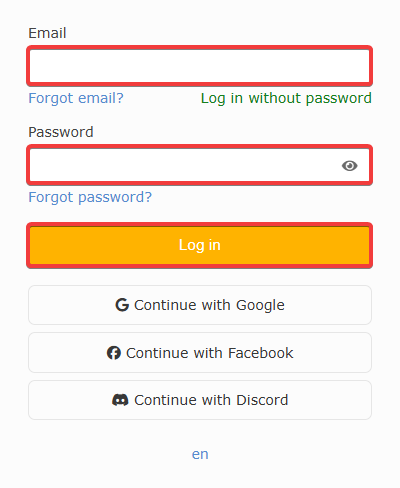
- Use one of the methods:To log in this way, you need the address of your account email and your account password. You'll need access to your mailbox if two-factor authentication is configured via Email only.
Enter account email, password, and click "Log in":
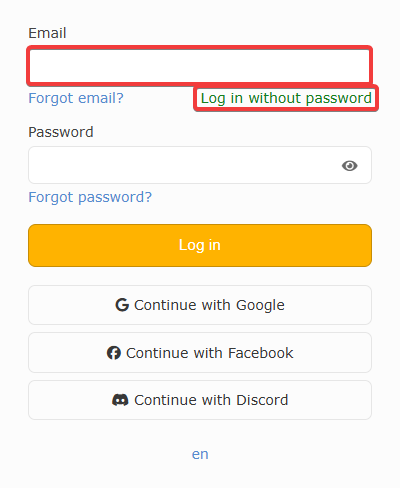
 To log in this way, you need the address of your account email and access to your mailbox. You do not need to enter your account password.
- Enter account email and click "Log in without password":
- Wait for the message sent to the specified email and follow the "Log in" link in it:
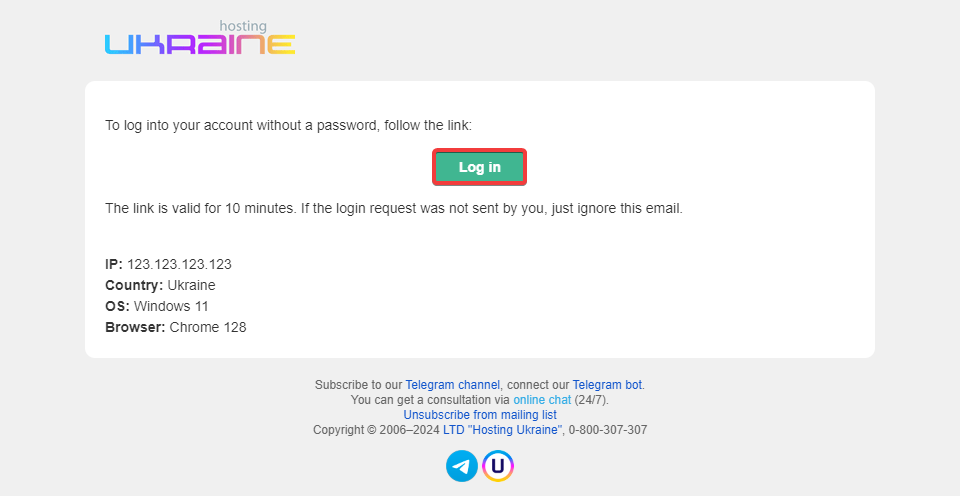 Some browsers send inaccurate information about the operating system, so Windows 11 may sometimes be identified as Windows 10.
To log in this way, the account must have a passkey (WebAuthn) configured and enabled login without password.- Go to the "Email" field and at the prompt, click "Use a passkey":
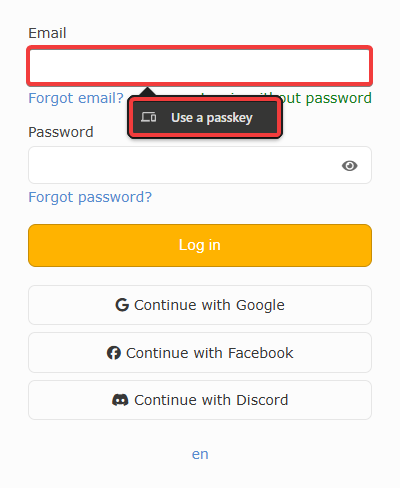
- Select the device with the passkey of your account, select the passkey and confirm the login (the order of actions depends on the way WebAuthn is set up — a PIN code, smartphone, browser extension, hardware key, etc. can be used).
- Complete two-factor authentication (if your authentication data has not been stored in your browser's cache):
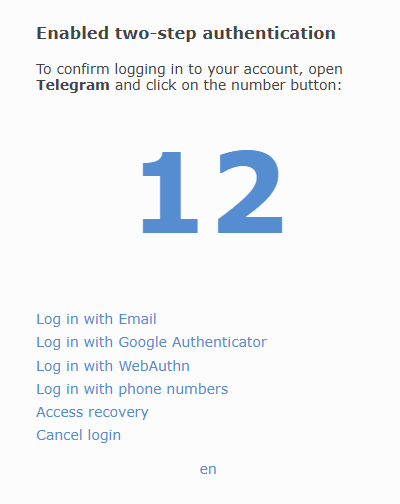 Enter the one-time code from the email sent to your account email and click "Log in".
Notes:
- A login confirmation message is sent to all Telegram accounts linked to the account.
- The number is a link to quickly navigate to chat with our bot.
A number will appear on the login page. In Telegram, open a chat with our bot and click on the button with the same number.
Enter the one-time code generated by authenticator app and click "Log in".Select the device with the passkey of your account, select the passkey and confirm the login (the order of actions depends on the way WebAuthn is set up — a PIN code, smartphone, browser extension, hardware key, etc. can be used).Attention!
When confirming login using a phone, two-step authentication is disabled in the account, and linked bank cards are removed. Use this method only when other options for completing two-step authentication are unavailable.- Read the warning, select "Disable two-step authentication" and click "Continue".
- Select a phone number from the list of previously added phone numbers in the account and press "Call".
- Accept the call, enter the 4 digits dictated by the robot (if your phone number is not Ukrainian — the last 4 digits of the number from which you were called) and press "Enter".
After 3 minutes after the call you can request a code by SMS, after another 3 minutes you can request a call again.Use access restoration.
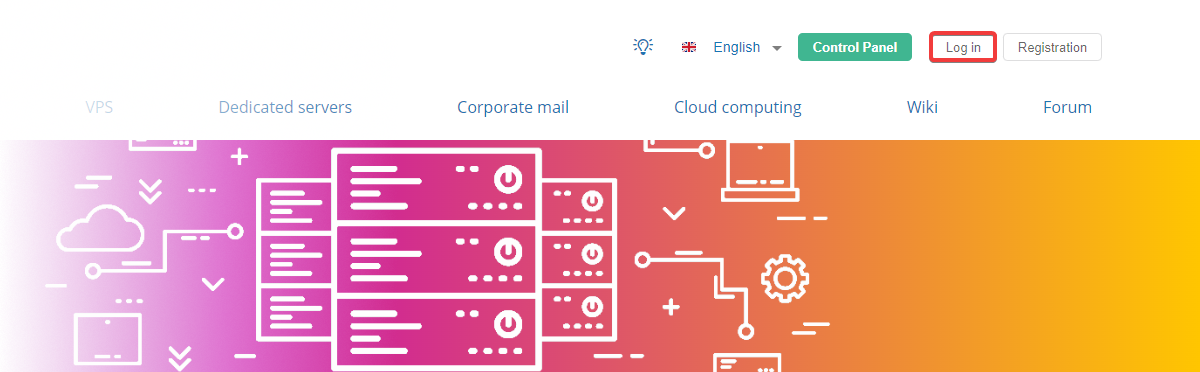
(1)
Notes:
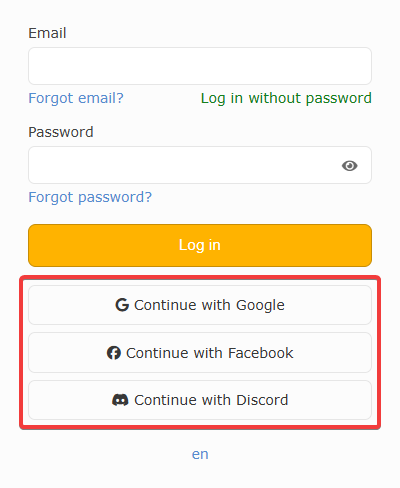
Click on the corresponding service button to authorize with a Google, Facebook or Discord account: